
Institution of an automatic out-of-office message
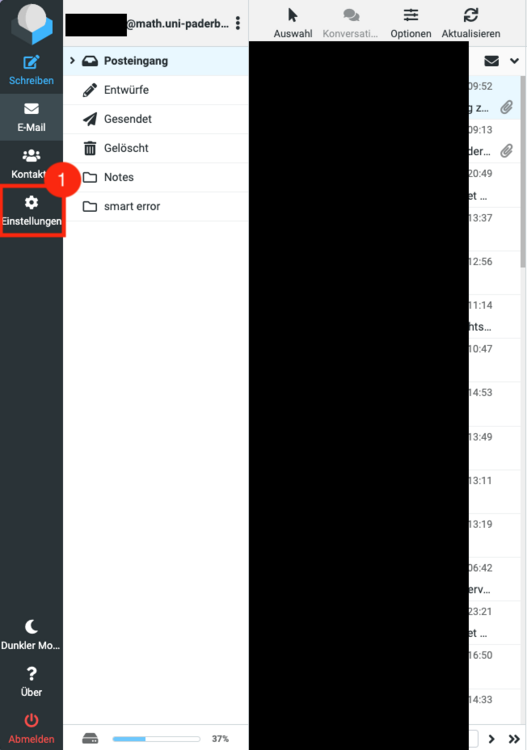
You can set up an out-of-office message in the filter menu in the webmailer. To do this, please log in to the webmailer and select Settings in the menu on the left
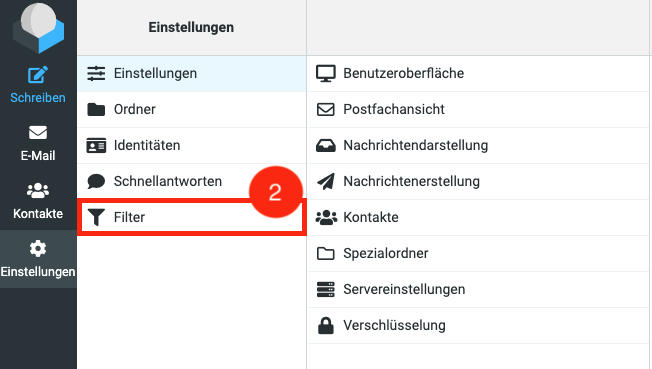
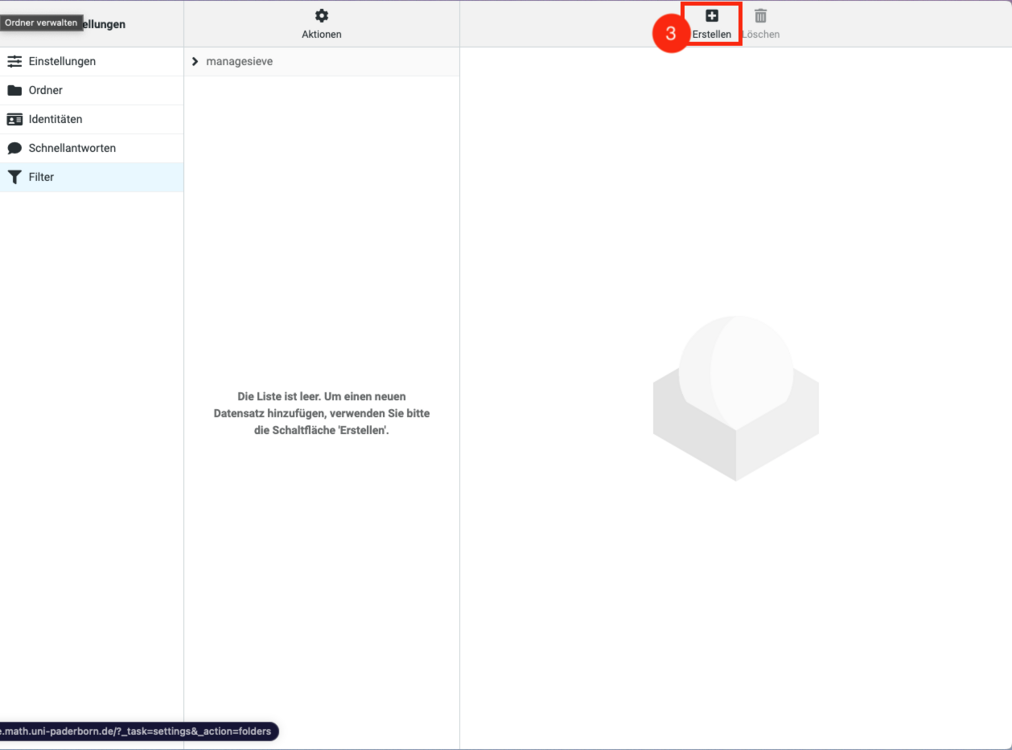
If you now click on the "Filter" entry (step 2), you can add new filters under Create (step 3). (Fig. 2 and Fig. 3)
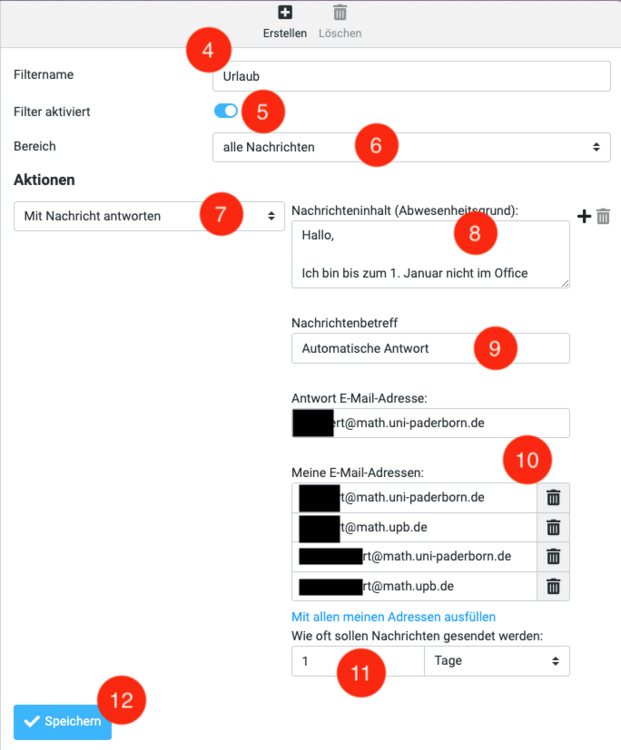
4. specify a name for the filter. This will only be displayed to you.
5 Activate the filter
6. if an out-of-office message is to be applied to all messages, set the All messages option under Field. Alternatively, you can also define only certain sender addresses.
7. under Actions, select Reply with message.
8. enter your out-of-office message in the message content.
9. then define a subject.
10. under My email addresses, click Fill in with all my addresses.
11) Set the value for Frequency to 1 day(s ) [Recommended].
12. save the filter.
Zeitliche Begrenzung

Wenn Sie eine Zetliche Begrenzung für Ihre Abwesenheit haben wollen, fügen Sie folgende zwei Filterregeln, wie im Bild gezeigt, zusätlich hinzu.